
If YouTube suddenly starts feeling slow, buffering for no reason, or behaving weird like freezing on videos, don’t panic. Most of the time, it’s not your phone or internet—it’s just cache buildup.
I’ve personally seen this happen a lot: people try everything (reinstalling apps, switching Wi-Fi, even changing devices), but the real fix is often much simpler. You just need to understand how to clear YouTube cache the right way.
Let’s break it down in a natural, no-stress way.
First, What Is YouTube Cache (In Simple Words)?
Think of cache like YouTube’s “memory box.”
Every video you watch, every thumbnail you see, and every search you do—YouTube stores small bits of it so things load faster next time.
Sounds good, right? It is… until it gets too full.
When cache builds up too much, it can cause:
- Slow loading videos
- Random buffering even on fast internet
- App freezing or crashing
- Old thumbnails or glitches
So clearing it is basically like cleaning your phone’s digital clutter.
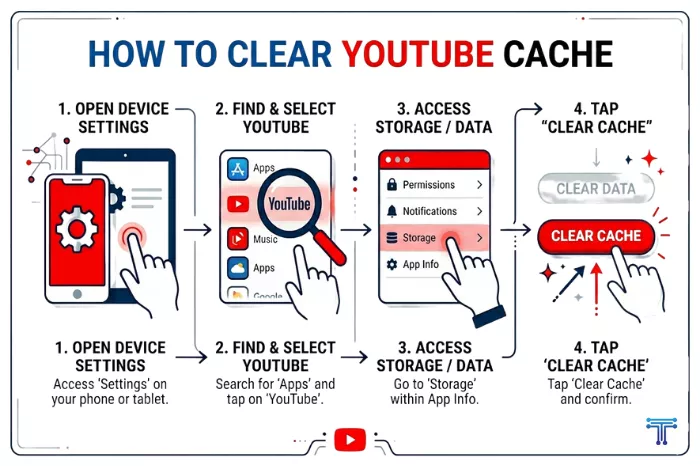
How to Clear YouTube Cache on Android (Fast Method)
If you’re using Android, this is the easiest way:
- Open Settings
- Go to Apps
- Find and tap YouTube
- Open Storage
- Tap Clear Cache
That’s it. No data is deleted, no account is logged out. Just a clean refresh.
How to Clear YouTube Cache on iPhone
iPhones don’t give a direct cache-clear button, so you have two simple options:
- Offload the App
- Go to Settings > General > iPhone Storage
- Tap YouTube
- Select Offload App
- Reinstall it
- Option 2: Delete and Reinstall
If YouTube is really acting up, this gives the cleanest reset.
How to Clear YouTube Cache on Browser (Chrome/Desktop)
If you watch YouTube on a browser:
- Open Chrome Settings
- Go to Privacy and Security
- Click Clear Browsing Data
- Select Cached images and files
- Hit Clear Data
After that, YouTube will reload fresh like new.
When Cache Isn’t the Only Problem
Sometimes clearing the cache alone is not enough. YouTube issues can also stem from other factors, such as browser extensions (Adblock, AdBlock Plus, or Ghostery), outdated apps, or ad-related conflicts.
For example, many users try to block ads to make the experience smoother. Some others just want to skip ads quickly without interruptions.
But here’s something people often notice: even after installing ad blockers, sometimes things still don’t work properly, and they end up saying uBlock Origin is not blocking ads—especially when YouTube updates its system or changes how ads are delivered. And you are still using that older version. That’s why you should know how to update uBlock Origin before assuming the extension itself is broken.”
So if you’re facing issues, don’t rely only on extensions. A clean cache + updated app usually works better together.
FAQs
No, absolutely not. It only removes temporary files. Your account stays safe.
Every 2–4 weeks is enough. If YouTube starts lagging, do it earlier.
Not directly, but it can fix buffering and playback issues, which makes videos feel smoother.
Because it stores thumbnails, search data, and video previews to load faster next time.
Yes. Start with cache clearing first. Reinstall only if the issue continues.
