
We’ve all been there. You’re just settling into a podcast or getting ready to answer calls on AirPods during a frantic workday, only to hear that dreaded “bloop” sound — the low-battery chime of death.
While Apple makes the experience pretty slick, checking exactly how much juice you have left isn’t always obvious if you aren’t staring at your iPhone. Whether your AirPods are connected to an Android and you’re wondering why your AirPods die so fast lately, here is the breakdown of how to track your power levels.
The iPhone and iPad Method (The Easiest Way)

If you’re in the Apple ecosystem, you have it easiest. The “flip and peek” is the classic move:
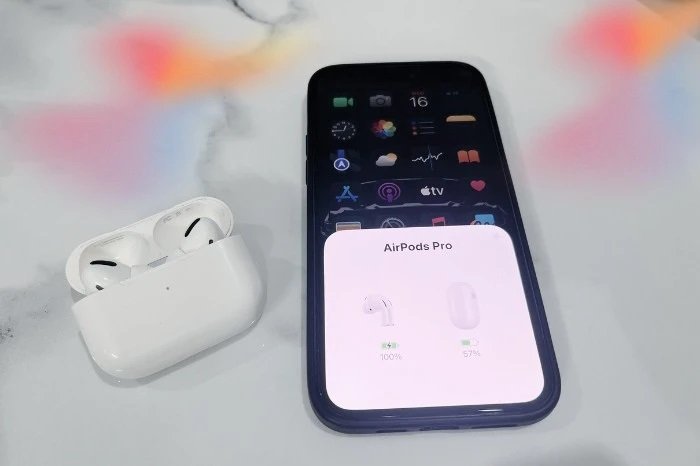
The Pop-up: Just hold your AirPods case (with the buds inside) next to your iPhone and flip the lid open. A little card slides up from the bottom. It’s satisfying, but honestly, it sometimes takes a second to trigger.
The Widget: If you hate opening the case constantly, use the Batteries widget. Long-press your home screen, hit the plus (+) icon, and add “Batteries.” It’s a lifesaver for seeing if your left bud is draining faster than your right.
Just Ask: I usually just say, “Hey Siri, battery status?” while I’m walking. If you find the voice assistant annoying, you can always turn off Siri later (can turn it on anytime), but for a quick check, it’s the fastest hands-free option.
Checking on a Mac

Using AirPods for Zoom calls? You don’t need to reach for your phone.
- Look at the top right of your Mac’s menu bar. Click the Bluetooth icon or the Control Centre (the icon that looks like two toggle switches).
- Click the arrow next to your AirPods. If they’re in your ears, it’ll show you the percentage for each.
- Pro Tip: If your device list is cluttered, you should name your AirPods to something like “My Daily Drivers” so they stand out in the Bluetooth menu.
Dealing with Android, Windows, and “Non-Apple” Gear
This is where things get a bit annoying. Apple doesn’t natively share battery data with Windows or Android.
- Android: You’ll need an app like MaterialPods. It mimics the iPhone pop-up. Without it, you’re basically flying blind.
- TVs and Consoles: If your AirPods are connected to a TV or PS4. You usually won’t get a battery percentage on the screen at all. You’ll have to rely on the “Low Battery” tone or check them on your phone real quick.
Reading the “Secret” Case Lights
If your phone is in the other room, look at the LED light on your case (either on the front or under the lid).
- Green: You’re good to go.
- Amber/Orange: You have less than one full charge left.
- White: If you see your AirPods flashing white, they are in pairing mode, not telling you the battery!
Why is my battery acting weird?
If you notice your AirPods charge lasts significantly lower than the promised 5-6 hours, it might be a software bug. Sometimes a simple update fixes the power management. You can update AirPods firmware by simply leaving them on charge near your iPhone.
Also, if you’re a power user, Siri might be draining your juice by constantly listening for commands. You can stop Siri from reading messages on AirPods to squeeze out a few extra minutes of talk time. And if things really go south — like your AirPods microphone not working or even worse they are not connecting — it’s usually because the battery is so low that the hardware is struggling to maintain the connection.
Quick Cheat Sheet
| Situation | Action |
| AirPods in case | Open lid near iPhone |
| AirPods in ears | Check “Batteries” widget on iPhone |
| On a Laptop | Check Bluetooth settings |
| No Device Nearby | Look for the Amber light on the case |
