

Picture this: you’re soaking in a quiet moment, maybe with a good book or your favorite playlist, when your phone erupts with a call. The screen flashes an unfamiliar number, but curiosity gets the best of you.
You answer, only to hear that dreaded automated pitch—a cruise you didn’t enter to win, a debt you don’t owe, or yet another political survey. We’ve all been there.
That sinking feeling of intrusion is all too common in our connected world. But here’s the good news: your iPhone has a simple, powerful hidden tool to fight back. Blocking unwanted numbers isn’t just a feature; it’s your personal shield. And I’m here to walk you through it, step by easy step, just like I’d help a friend.
Best Methods to Block Any Number on Your iPhone
Method 1: Block a Recent Call (The Quick Fix)
This is your go-to move right after an annoying call.
- Open your Phone app.
- Tap Recents at the bottom.
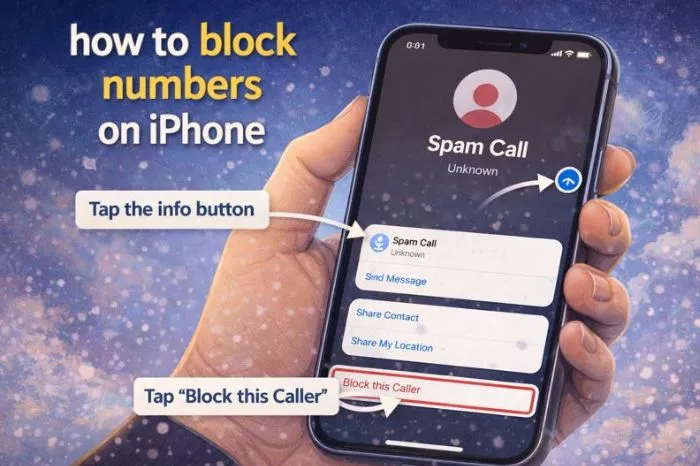
- Find the number you want to block and tap the “i” (info) icon next to it.
- Scroll down the info page and select Block this Caller.
- Tap Block Contact to confirm.
That’s it. They’re blocked from calling, texting, or FaceTiming you.
Method 2: Block Someone in Your Contacts
Sometimes, the person is already saved in your phone.
- Open your Contacts app.
- Tap the contact’s name.
- Tap Edit in the top right corner.
- Scroll down and tap Block this Caller.
- Confirm by tapping Block.
They’ll stay in your contacts, but you won’t receive any notifications from them.
Method 3: Block Directly from a Text Message
Perfect for shutting down spam texts or unwanted conversations.
- Open the Messages app.
- Tap the conversation with the number.
- At the top, tap the contact’s name or number.
- Tap the info (“i“) icon.
- Select Block this Caller and confirm.
How to Manage Your Blocked List (Unblock or Add Manually)
Changed your mind? Need to block a number before it even calls? Here’s how to manage your list.
- Go to your Settings app.
- Scroll down and tap Phone (you can also use Messages or FaceTime—they all lead to the same list).
- Tap Blocked Contacts.
Here you can:
- Unblock: Swipe left on any number and tap Unblock.
- Add New: Tap Add New… to manually enter a number from your contacts to block.
A Powerful Pro Tip: Silence Unknown Callers
If you’re getting slammed by spam, this feature is a lifesaver. It sends any call from a number not in your contacts, Mail, or Messages straight to voicemail.
- Go to Settings > Phone.
- Scroll down and toggle on Silence Unknown Callers.
Heads-up: Use this wisely. It might silence calls from your pharmacy, a delivery person, or a new friend.
A Few Things to Keep in Mind:
- Blocked callers can still leave a voicemail, but you won’t get a notification. They’ll be separated in a “Blocked Messages” section at the very bottom of your voicemail list.
- Blocking is tied to your specific number. If they call you from a different number, you’ll need to block that one, too.
- For extreme spam, you can explore apps like Hiya or your carrier’s own tools, but Apple’s built-in features handle most situations perfectly.
Taking just a minute to use these steps gives you control. It’s not about being rude—it’s about protecting your time and your peace. Your phone should be a tool for connection, not a source of stress. Go ahead, block that number. You’ve got this
More about iPhones: