

If you have ever tried to connect a new device to your WiFi and suddenly realized you do not remember the password, you are not the only one. It happens to everyone at some point.
The good thing is that your iPhone automatically saves the networks you connect to, which makes it very easy to recover the password whenever you need it.
Understanding how to find a WiFi password on an iPhone is simple, quick, and something anyone can do without any technical skills.
So if you are wondering how to see WiFi password on iPhone or want to learn how to find the WiFi password on an iPhone in a few simple steps, this friendly guide will walk you through everything clearly and confidently.
Why You Might Need to View Your WiFi Password
Sometimes you want to share the WiFi with a guest. Sometimes you change your router and need the password again. And at other times, your iPhone connects automatically, but you have no clue what the actual password is.
These are the perfect situations where learning how to view the WiFi password on iPhone becomes extremely helpful.
Apple introduced a built-in option in iOS 16 that finally allows users to see saved WiFi passwords directly on their device and further IOS Updates allow users to securely view, copy, and share saved Wi-Fi passwords through the Settings app. It is secure, easy, and fast.
How to Find Your WiFi Password on an iPhone
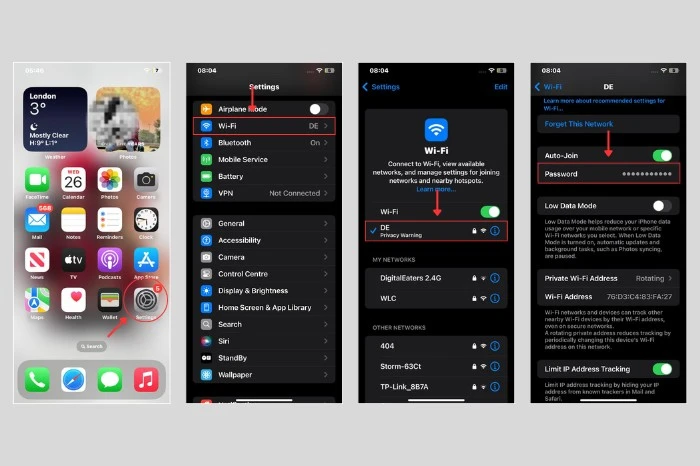
Here is the most straightforward method for how to find WiFi password on iPhone. You only need to make sure your device is already connected to the network.
- Open the Settings App
Go to the WiFi section. - Select the Network
Tap the small info icon next to the WiFi you are connected to. - Tap on Password
Your iPhone will ask for Face ID, Touch ID, or your passcode. - View or Copy the Password
Once verified, the password becomes visible and you can copy it for sharing.
That’s all it takes to find a WiFi password on your iPhone without using third-party or any kind of hidden apps on your phone.
How to Find the WiFi Password for Previously Connected Networks
Maybe you want the password of a WiFi network you connected to a long time ago. You can still access it.
- Open Settings
- Go to WiFi
- Tap Edit in the top right corner
- Scroll through the list of known networks
- Tap the info icon next to any network
- Tap Password and authenticate
This feature comes in handy when switching phones or helping a family member connect to the same network.
How to Share WiFi Password With Another Apple Device
If you do not want to manually view the password, Apple also offers a built in sharing feature.
- Enable WiFi and Bluetooth on both devices
- Keep both devices close
- Try connecting to the WiFi on the second device
- Your iPhone will pop up a prompt asking whether you want to share the password
- Tap Share
This is helpful when you prefer convenience and security.
Viewing WiFi Password Through iCloud Keychain and Mac
If you use a Mac with the same Apple ID, you can access saved passwords from there too.
Apple explains how iCloud Keychain stores and syncs WiFi passwords securely. You can learn more through Apple Support here
To view the password on a Mac
- Open System Settings or Keychain Access
- Choose your WiFi network
- Click Show Password
- Authenticate with your Mac password
This is a reliable alternative if your iPhone does not display the password due to restrictions.
Find WiFi Password Using Router Settings
If none of the above methods work, you can check the router directly.
- Open a browser on your iPhone
- Enter the router IP address like 192.168.0.1 or 192.168.1.1
- Log in using your router’s admin credentials
- Go to Wireless or WiFi settings
- Look for Security or Password section
For general reference on routers and WiFi encryption standards, the US Federal Communications Commission offers helpful educational material
Why You Might Be Unable to See Your WiFi Password
A few situations can prevent the password from appearing.
- Your iPhone is running older iOS version
- The network is managed by a company or school
- iCloud Keychain is turned off
- The password is restricted on the router
- You are not connected to the network
Updating your iPhone and enabling iCloud Keychain often resolves these issues.
Tips for Safely Managing WiFi Passwords
- Use a strong and unique password
- Avoid sharing passwords through social media platforms
- Use password managers for easy storage
- Update your router password regularly
- Share WiFi through Apple’s secure sharing feature instead of texting the password
Conclusion
Now you know how to find the WiFi password on iPhone using several simple methods. Whether you want to view the password directly, access old networks, or use a Mac or router as a backup, the process is straightforward and secure. Next time someone asks how to see WiFi password on iPhone or how to know the password of a WiFi in iPhone, you can confidently guide them like a pro.
FAQs
You can see the saved WiFi password by opening Settings and then tapping WiFi. Select the small info icon next to your connected network and then tap Password. After confirming with Face ID or your device passcode, the password will appear.
Yes you can. Go to Settings then open WiFi and tap the Edit option at the top right. You will see a list of saved networks. Select the info icon next to any network and then tap Password.
Apple offers a built in sharing feature. Keep both devices close with WiFi and Bluetooth enabled. When the second device tries to connect your iPhone will show a Share Password popup. Tap Share and the connection will be completed automatically.
There may be several reasons such as using an older iOS version or having restrictions on the network if it belongs to a company or school. Sometimes iCloud Keychain is turned off or the router password is not synced to your device.
Yes you can check the password on a Mac if both devices use the same Apple ID with iCloud Keychain enabled. Another option is to open your router settings in a browser and view the password in the wireless section.
More About iPhones: