
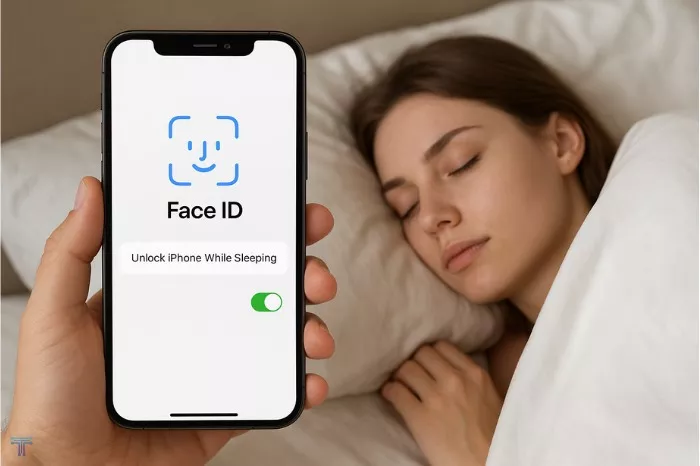
We’ve all been there. It’s 3 a.m., you’re half-asleep, and you just want to check the time, silence an alarm, or see if that late-night notification was important. You blearily glance at your iPhone—and nothing happens. Face ID fails, and you’re forced to fumble for your passcode. Why won’t it unlock? And is there a safe way to make it work?
Let’s break down the why first, because it’s crucial for your security.
Why Face ID Stops Working When Your Eyes Are Closed
This isn’t a glitch; it’s one of Face ID’s most important security features, called Attention Awareness. For Face ID to unlock your phone, it needs to detect that you are not only looking at the device but that you are consciously doing so. It checks for:
- Your eyes being open.
- Your gaze being directed at the screen.
If your eyes are closed or you’re looking away, Face ID will not unlock. This prevents someone from accessing your phone by simply holding it up to your face while you’re asleep, unconscious, or unaware. It’s a vital layer of privacy protection.
So, the short answer to “Can I unlock it while sleeping?” is no, and you shouldn’t want to. Disabling this security feature fundamentally weakens your phone’s protection.
What You Can Adjust: The “Require Attention” Setting
If your goal is simply to make Face ID a bit more convenient in low-light or when you’re resting—but not fully asleep—there is one setting you can adjust. This does not make it work with closed eyes, but it can make the “gaze” requirement slightly less strict.
- Open your Settings app.
- Scroll down and tap Face ID & Passcode. Enter your passcode.
- Scroll to the ATTENTION section.
- You’ll see a toggle for “Require Attention for Face ID.”
What this does:
When ON (Default): Face ID requires you to look directly at the screen. This is the most secure setting.
When OFF: Face ID can unlock your phone when your face is pointed at the screen, even if your eyes aren’t directly focused on it. It may work from slightly odd angles or if you’re looking at the notch instead of the screen.
Important Warning: Turning this off reduces security. It makes it marginally easier for someone to unlock your phone without your explicit attention. Apple itself notes this in the settings menu.
Practical Solutions for Nighttime Access
If you genuinely need nighttime access without compromising core security, here are safer alternatives:
Use a Passcode: It’s the simple, 100% reliable backup. Muscle memory often takes over when you’re tired.
Adjust Your Settings for Specific Actions: You can customize what requires a full unlock. For example:
- Go to Settings > Face ID & Passcode.
- Scroll down to the ALLOW ACCESS WHEN LOCKED section.
- You can enable “Today View and Search” or “Control Center.” This lets you access quick info or toggle a flashlight without a full unlock.
Use “Hey Siri” for Simple Tasks: You can ask Siri to tell you the time, set an alarm, or send a message without unlocking the phone at all.
Consider an Apple Watch: If you wear one to sleep, it can show you the time and notifications silently. Unlocking your iPhone while wearing your authenticated Apple Watch is also seamless and secure.
Read Also:
- How to disable Siri?
- Funny things to ask Siri?
- How to Stop Siri from Reading Messages on AirPods?
- How to Turn Off Siri on AirPods?
- How to Turn On Siri on AirPods?
The Bottom Line: Security vs. Convenience
Apple’s design philosophy with Face ID prioritizes security. The inability to unlock your phone while sleeping is a feature, not a flaw. It’s the digital equivalent of a deadbolt on your front door.
While the Require Attention toggle offers a minor concession for convenience, disabling it comes with a real, though small, risk. For most people, the default settings are the best balance. For those midnight time checks, a quick tap on the screen or using “Hey Siri” is the safest compromise.
Your phone holds a treasure trove of personal data. That momentary inconvenience at 3 a.m. is a small price to pay for knowing it’s rigorously protected. Sleep soundly knowing your iPhone is watching out for you—literally.
