
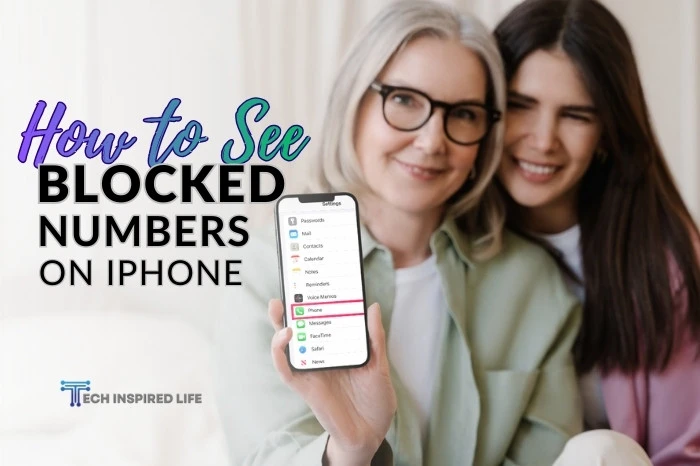
You can see blocked numbers on iPhone by opening Settings, scrolling to Phone (or Messages/FaceTime), then tapping “Blocked Contacts.”
This displays your complete block list with all phone numbers, email addresses, and contacts you’ve blocked.
According to Apple Support, iOS stores this information across Phone, Messages, and FaceTime apps, with over 1.8 billion active iPhone users worldwide relying on these privacy features to manage unwanted communications.
How Do I Access My Blocked Contacts List?
Finding how to see the blocked numbers on iPhone requires navigating through your device settings. The process remains consistent across iOS versions, though the exact menu placement may vary slightly.
Follow these steps to view your blocked list:
- Open the Settings app on your iPhone
- Scroll down and tap Phone
- Select Blocked Contacts
- View your complete list of blocked numbers and contacts
This same list appears when you check blocked contacts through Messages or FaceTime settings, as iOS maintains one unified block list across all communication apps.
Where Else Can I Find My Blocked Numbers?
Understanding how to see your blocked numbers on iPhone means knowing multiple access points exist within iOS. You can reach your blocked contacts through three different pathways.
Alternative methods include:
- Navigate to Settings > Messages > Blocked Contacts
- Go to Settings > FaceTime > Blocked Contacts
- Open Phone app > Contacts > select blocked contact > view “Unblock this Caller” option
Each pathway displays identical information since iOS synchronizes blocking across all native communication platforms.
Can I See Messages From Blocked Numbers?
Many users wonder how to see messages from blocked numbers on iPhone. iOS blocks these communications completely, preventing them from appearing in your regular message threads.
Blocked messages behavior:
- Messages from blocked numbers never appear in your inbox
- No notifications are delivered from blocked contacts
- Voicemails from blocked numbers go to a separate “Blocked Messages” folder
- You cannot retrieve text messages that were blocked
How Do I Check Missed Calls From Blocked Numbers?
Learning how to see missed calls from blocked numbers on iPhone reveals a limitation in iOS design. The system does not maintain logs of blocked call attempts.
Blocked call handling:
- Blocked calls are rejected automatically
- No call history records appear for blocked numbers
- Blocked callers hear one ring before being sent to voicemail
- Your phone remains silent without any indication of the attempt
How Many Numbers Can I Block on iPhone?
When managing how to see all blocked numbers on iPhone, you might wonder about capacity limits.
Apple Support documentation does not specify a maximum number of blocked contacts, though users report successfully blocking hundreds of numbers without issues.
The blocked contacts list displays:
- Phone numbers you manually blocked
- Email addresses blocked through Messages or FaceTime
- Entire contacts with multiple associated numbers
- Unknown numbers marked as spam
How Do I Remove Someone From My Block List?
Understanding how to unblock a phone number on an iPhone completes your blocking knowledge. The unblocking process mirrors the blocking procedure.
Unblocking steps:
- Open Settings and navigate to Phone
- Tap Blocked Contacts
- Swipe left on the contact you want to unblock
- Tap Unblock
- Confirm your decision
Once unblocked, that contact can immediately call, text, and FaceTime you again.
What Information Appears in My Blocked List?
Checking how to see list of blocked numbers on iPhone shows varying detail levels depending on how you initially blocked each contact.
Your blocked list displays:
- Full contact names for saved contacts
- Phone numbers for unsaved blocked numbers
- Email addresses blocked through iMessage or FaceTime
- The date you blocked each contact (visible when tapping Edit)
Related iPhone Privacy Features
Managing your iPhone privacy extends beyond blocking contacts. Explore how to see hidden apps on iPhone for comprehensive privacy control, or learn about best iOS 18 features for enhanced security options.
Additional helpful resources include how to turn off Find My iPhone, how to delete stickers on iPhone, and how to clear Instagram cache iPhone.