
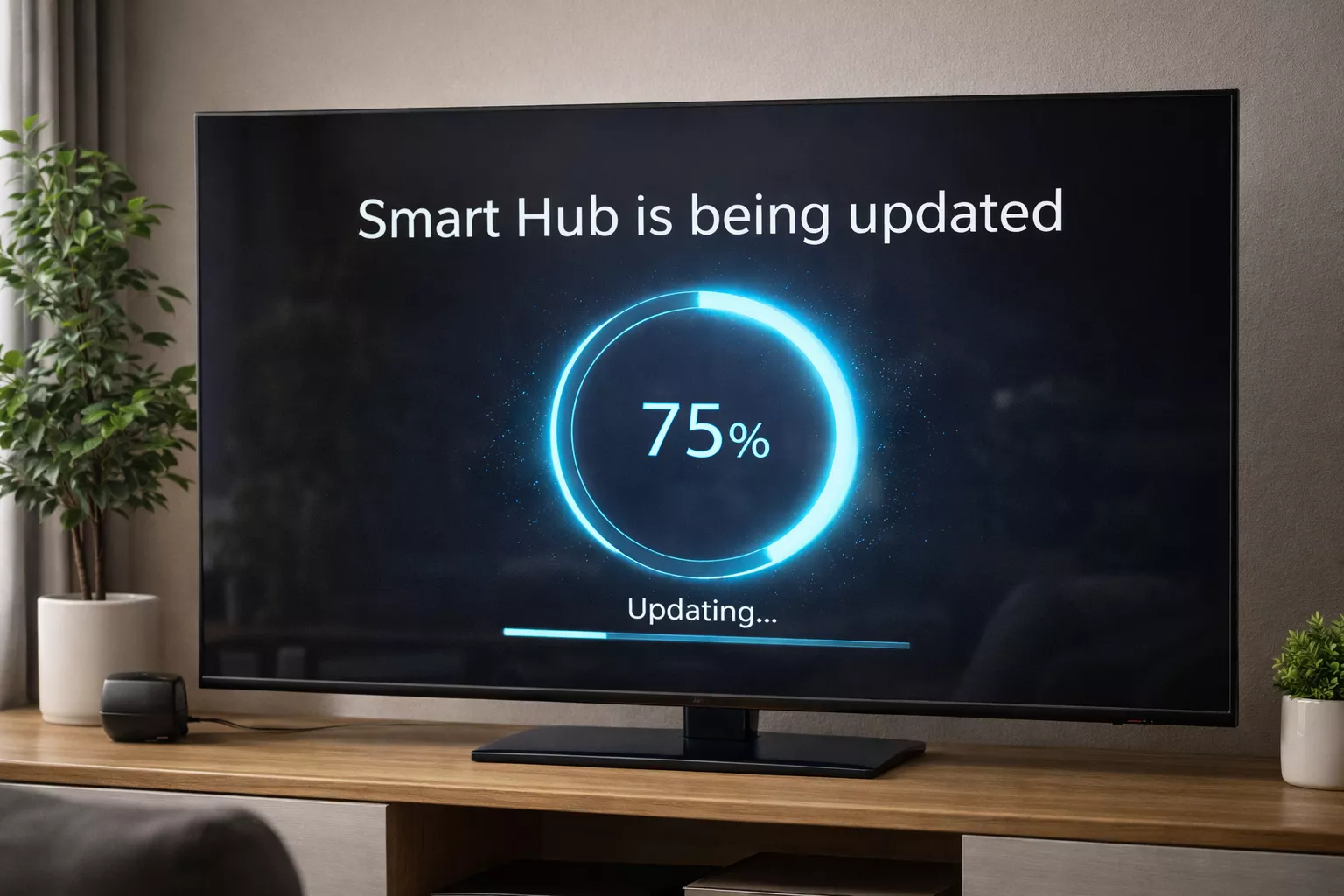
So, you’ve noticed the little light on your smart hub is doing a new, frantic dance. Or maybe your usually chatty assistant just gave you a polite, “I’m busy with an update, try again in a bit.” Don’t panic. Your home’s digital brain is just getting a tune-up. It can feel a bit like your butler has suddenly locked himself in the study with a stack of textbooks.
Here’s a detailed guide on what’s happening, what to do, and how to come out the other side with your sanity—and your smart lights—intact.
How to Handle a Smart Hub or Voice Assistant Update – Key Steps
1. Recognize the Signs (“Is It Broken?”)
First, let’s identify the symptoms so you don’t start unplugging things willy-nilly. An update rarely announces itself with a fanfare. It’s more subtle:
- Light Show: The status light, normally a steady or sleeping colour, is now blinking in a persistent, rhythmic pattern (often white, blue, or amber). This is the universal tech signal for “I’m working on something important; do not disturb.”
- Silent Treatment: You ask a question or give a command, and instead of its usual compliance or sass, you get a verbal message like, “My system is updating,” or, “Updates in progress. Some features may be unavailable.”
- App Notification: You might get a quiet push notification on your phone from the hub’s companion app: “Update in progress.” Sometimes you see this after the fact: “Update complete! Discover new features.”
If you see these signs, take a deep breath. Your hub isn’t broken. It’s in school.
2. The Golden Rule: Hands Off and Let It Breathe
This is the most critical step. Your instinct might be to troubleshoot, but resist the urge to unplug or restart the device. Interrupting a firmware update can corrupt the software, potentially turning your smart hub into a very dumb, very expensive paperweight. Think of it like performing surgery on itself; you wouldn’t jostle the table.
Your job here is simple: Do nothing. Well, almost nothing. Just go about your life. Let the robot have its moment. This process can take anywhere from a few minutes to half an hour. Go make a cup of tea. The smart kettle might still work—small mercies.
3. Confirm the All-Clear
How do you know it’s done? The blinking light will return to its normal, peaceful state. That’s your visual cue. For auditory confirmation, try asking a simple, non-critical question: “Hey Google, what time is it?” or “Alexa, are you updated?” If it answers normally, the coast is clear. Don’t immediately test the most complex routine in your smart home arsenal; start with the basics.
4. Explore and Discover (“What Did You Learn?”)
Now for the fun part. The update notes in the app are often vague: “General improvements and bug fixes.” The real discovery is hands-on. This doesn’t need to be a formal audit, just a bit of curious poking over the next day or two.
- Chat Differently: Ask your assistant the same old questions. Does it sound slightly different? Are the responses a bit faster, or more natural? Sometimes the voice gets a subtle, more human-like inflexion.
- Test the Peripherals: Did that one finicky smart plug that always dropped connection finally play nice? Try a command that previously failed.
- Check for New Voices or Skills: Sometimes updates add new optional voice personalities or automatically enable new, broadly useful “Skills” or “Actions.”
- Run Your Routines: Execute your “Good Morning” or “I’m Home” routine. Did everything fire in the right order? Did a new device get magically incorporated?
Treat it like catching up with a friend who just came back from a course. You’ll notice the new skills through conversation, not a checklist.
5. Troubleshoot the Quirks (The “Okay, This is New…” Moment)
Sometimes, an update introduces a hiccup. A previously perfect command might now be misunderstood, or a device might be unresponsive. This is normal. It’s not the apocalypse; it’s just a new software version getting to know your home again.
- Simple Reboot: Now that the update is fully complete, it’s safe and often helpful to do a full power cycle. Unplug your hub, wait 30 seconds, and plug it back in. This clears any temporary glitches and helps the new software settle in.
- Re-link Troublesome Devices: If one specific device is acting up, head into the hub’s app and try removing and re-adding it. It’s like reintroducing two friends after one got a personality update.
- Re-teach Your Commands: If a custom phrase isn’t working, simplify it or re-save your routine. The underlying logic of how the assistant parses language might have shifted.
Last Remarks
Finally, take a second to appreciate what just happened. A device in your home just fundamentally improved itself without a single screwdriver or trip to the store. Its intelligence, its very personality, was rewritten over thin air. You’re not living with static gadgets anymore; you’re living with entities on a slow, continuous journey of learning. That blinking light is a pulse of progress.
So next time you see that rhythmic glow, just nod. Pour your drink, mutter, “Take your time,” and know that when it’s done, your little corner of the future will be running just a bit smoother. The key is patience, a dash of curiosity, and the wisdom to know when to just let the magic happen on its own.
Also Read: Why Genboostermark Software is so Popular?
