
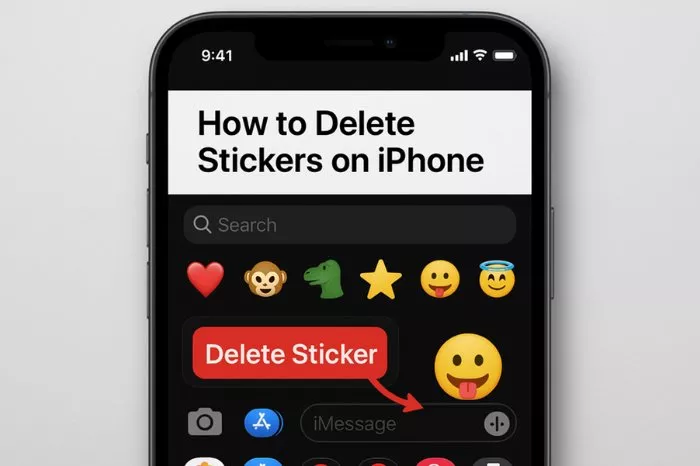
Let’s be real, we’ve all gone a little sticker-crazy at some point. That hilarious animated cat, the perfect “I told you so” GIF, or that pack of aesthetic doodles seemed like a great idea at the time. But now, your iPhone’s emoji keyboard is a cluttered mess, and finding the sticker you actually want feels like searching for a needle in a digital haystack.
If you’re nodding along, it’s time for a little digital spring cleaning. Deleting stickers on your iPhone isn’t as straightforward as dragging an app to the trash, but it’s still pretty simple once you know where to look. This guide will walk you through the process, whether those stickers live in your core keyboard or within a specific app like WhatsApp or Facebook Messenger.
Part 1: Deleting Stickers from Your iMessage Keyboard
Most of the stickers causing clutter are likely in the place you use most: the Messages app. These are the stickers you’ve added from the App Store or created from your own photos. Here’s how to evict them.
Step 1: Open the Sticker Drawer
Open the Messages app and start a new message or open an existing one. Tap the “A” button next to the text field to open the App Drawer, then tap the sticky note icon (the Sticker icon).
Step 2: Enter “Jiggle Mode”
Swipe left through your sticker packs until you find the one you want to delete. Once you’ve found it, press and hold on the sticker pack icon itself (the small icon at the bottom of the drawer, not an individual sticker inside it). After a second, you’ll feel a haptic tap and all your sticker pack icons will start to “jiggle,” just like your home screen apps.
Step 3: Tap the “X” to Delete
You’ll see a small “X” appear in the top-left corner of every sticker pack that isn’t a default Apple one. Tap the “X” on the pack you want to remove. A confirmation pop-up will ask if you want to “Delete Sticker Pack.” Confirm, and poof! It’s gone.
This process only deletes the pack from your keyboard; it doesn’t refund any purchased packs, but you can always re-download those later from the App Store.
Part 2: Taming Third-Party App Stickers (Like WhatsApp and Messenger)
What if the stickers are in an app like WhatsApp? The process is different because these stickers are stored within the app’s own data, not your system-wide keyboard.
For WhatsApp:
- Open a chat in WhatsApp and tap the emoji icon.
- Tap the sticker icon (the sticky note) to open your sticker library.
- Scroll to the pack you want to remove and tap the arrow icon on its tile.
- You will see a Remove button at the bottom. Tap it, and confirm. The pack will be removed from your WhatsApp collection.
For Facebook Messenger:
The process is similar. Open your sticker tray in a Messenger chat, find the pack, and look for a small down-arrow or “i” icon. Tapping this will usually give you an option to remove or delete the pack.
Also Read: How To Turn Off Meta AI on Facebook?
A Quick Note on “Memoji” and “Animoji” Stickers
You can’t delete the core Memoji and Animoji sticker packs that Apple provides, as they’re built into the iOS keyboard. However, you can delete individual Memoji characters you’ve created.
- Open the Messages sticker drawer and tap the three dots (…).
- Tap “Edit” in the top-right corner.
- Tap the red minus (-) icon next to the Memoji you want to remove, then tap “Delete.”
Why Can’t I Delete Some Stickers?
If a sticker pack isn’t jiggling or showing an “X,” it’s likely a built-in pack from Apple or a pre-loaded set from an app like WhatsApp. You can often hide or “rearrange” these in jiggle mode to move them to the back of your drawer, but you can’t fully delete them.
And there you have it! A cleaner, more organised sticker collection. No more frantic scrolling past dozens of packs just to find that one perfect “thumbs up.” A little digital decluttering can make your messaging experience faster and far more pleasant. Now, go forth and conquer that chaos
